Old Photo Restoration
Restore and colorize an old photo with AI.
Upload your image
JPG, PNG, WebP · Max 3 MB each
Upload info & privacy
Upload an old photo to restore and colorize it with AI, then review and download the result. Keep your original: generated details and colors are interpretations.
No sign-up required. Free use is limited to 5 requests per hour per IP address. Processing time varies with the tool, image, and queue; keep this page open.
Images are processed by RunningHub. Privacy policy.
Real example
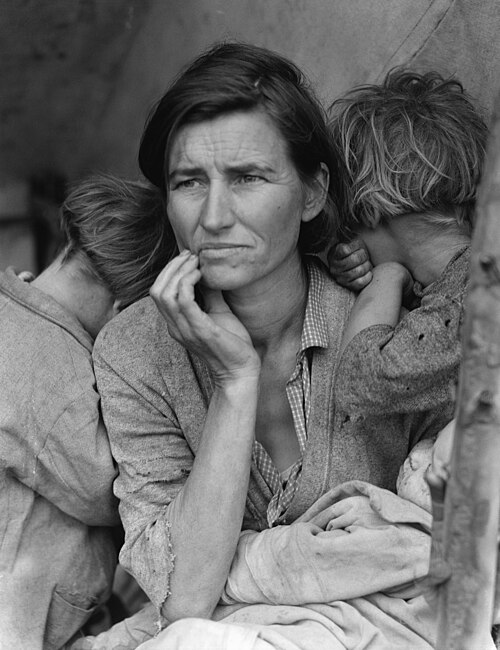
An actual historical-photo restoration
The input is a historical photograph, not an artificially damaged test image. Generated detail and color are interpretations, not recovered historical evidence.
 Download full-size image
 Download full-size image
Processed with PicMelo on October 23, 2026. Select an image to inspect the full-size file.
Source: Dorothea Lange, Migrant Mother, 1936 (public domain), via Wikimedia Commons.

Previews are compressed for faster loading. Open or download the full-size images to inspect the original files.
Prepare the original carefully
If possible, scan the photo rather than photographing it through glass. Use a clean scanner bed, disable aggressive automatic filters, and save a high-quality master copy. For a phone capture, place the print on a flat surface, use soft indirect light, keep the camera parallel, and avoid reflections.
What AI restoration changes
Restoration models infer plausible pixels where information is damaged or missing. This can produce a visually convincing image, but small facial features, clothing details, and background objects may not be historically exact. Keep both the untouched scan and restored version, and label the restored copy when sharing it as a family record.
Recommended steps
- Create and archive a high-quality digital master.
- Upload a copy, not the only version of the image.
- Review faces and important identifying details.
- Compare local contrast and skin texture with the source.
- Download the result and store it separately from the master.
Scanning and capture settings
For a small print, a scan around 600 pixels per inch often preserves enough information for restoration and future printing. Very high scan settings do not create detail that is absent from the print, but they can help preserve grain, handwriting, and small faces. Save an archival master in a high-quality format before making crops or corrections. If the reverse side contains dates or names, scan that as well.
When a scanner is unavailable, use a phone camera in indirect daylight. Remove the photo from a frame only if it can be done without damage. Keep the camera centered and parallel to prevent perspective distortion, and take several exposures so you can choose the sharpest one.
Separate preservation from interpretation
A restored image is not the same as a preserved original. Contrast changes, scratch removal, sharpening, and generated facial detail can all alter the historical record. For family storytelling this may be acceptable and helpful, but archives and researchers should retain the untouched scan and document every derived version.
Review faces and important clues
Compare expressions, jewelry, uniforms, signs, and background objects with the original. These details may carry family or historical meaning even when they seem visually minor. If the model invents a detail, consider keeping a lighter restoration rather than choosing the most polished result.
Build a simple preservation workflow
Keep at least three versions: the untouched scan, a lightly corrected copy, and the AI-restored result. Record any known names, dates, locations, and stories in a text file stored beside the images. File names should be descriptive enough that another family member can understand them without opening every photo.
Back up the archive in more than one location. A local drive plus a reputable cloud backup is more reliable than keeping the only copy on a phone. If the physical print is fragile, store it in an acid-free sleeve away from direct sunlight, moisture, and frequent handling.
When to consult a professional
Seek professional conservation advice for rare, valuable, mold-damaged, water-damaged, or historically important photographs. Digital restoration can improve a copy, but physical cleaning and repair require materials knowledge and can permanently damage the original when done incorrectly.
Frequently asked questions
Can AI repair a missing section?
It can generate a plausible replacement, but it cannot know exactly what was originally there.
Will this tool add color?
The current workflow can add color while restoring the image. These colors are generated estimates; keep the original if historical accuracy matters.
Can restoration remove every scratch?
No. Large tears crossing faces or detailed objects may require careful manual restoration. Automatic removal can also erase real lines that resemble damage.
How should I name restored files?
Use clear suffixes such as “original-scan,” “restored,” and the date. This prevents a generated version from being mistaken for the untouched record.